What is an image to text converter?
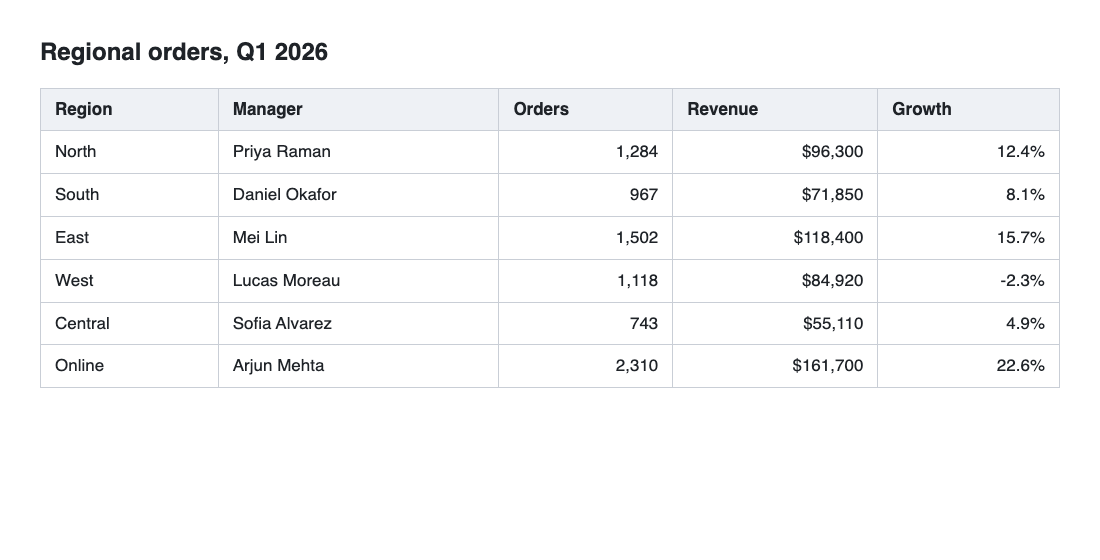
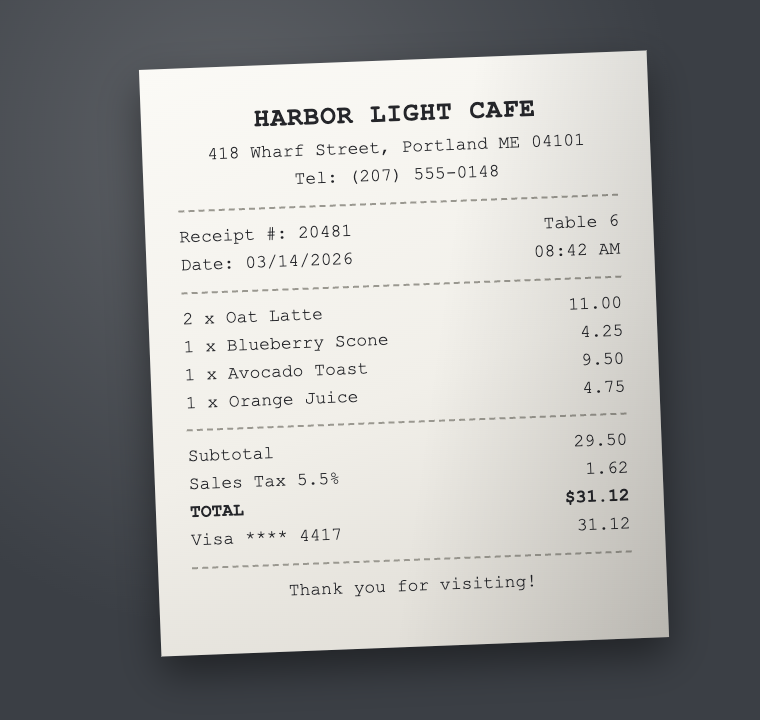
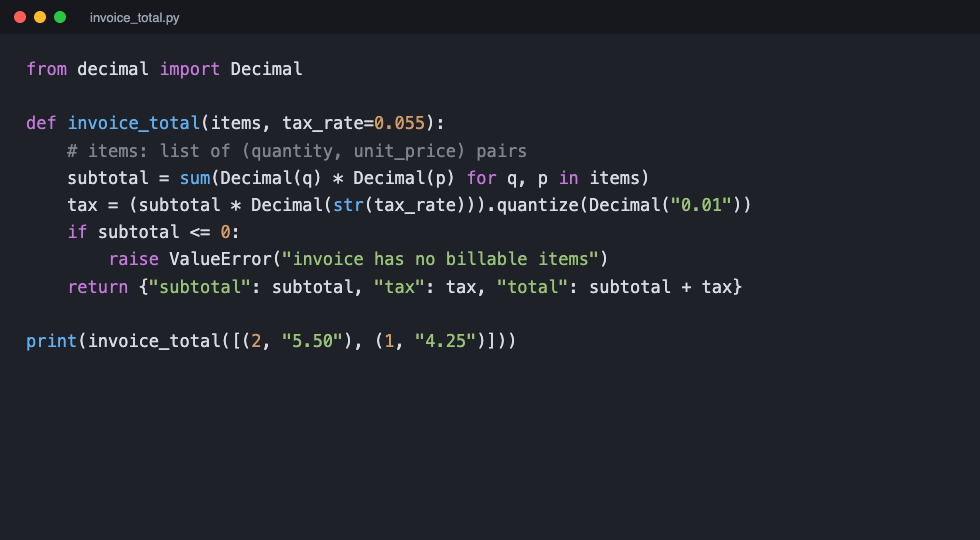
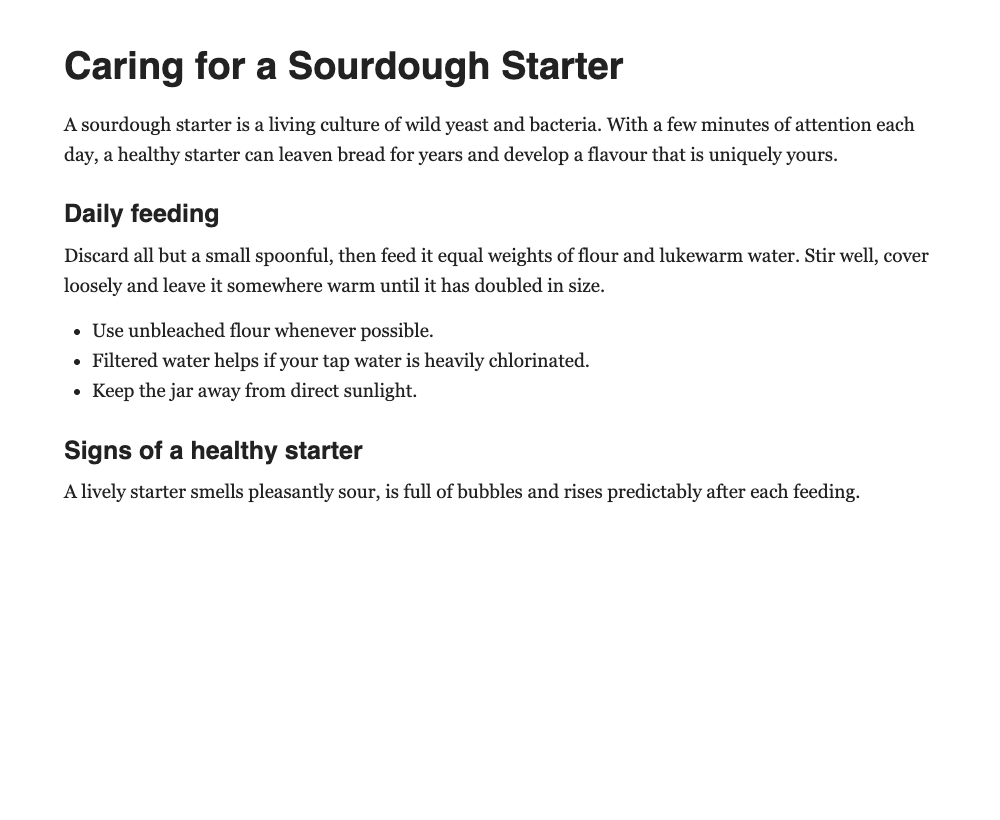
An image to text converter takes a picture that contains writing — a screenshot, a phone photo, a scanned page or a PDF — and turns that writing into real text you can select, edit, search and paste. The technology behind it is OCR, short for optical character recognition. Image to Text App uses Tesseract, an open-source OCR engine built on a neural network, and runs it directly in your browser. It doesn't just return a block of characters: it works out whether you've given it a table, a receipt, code, an article or handwritten notes, and lays the text out to match.
How to convert an image to text
- Add your image. Paste a screenshot with Ctrl+V (⌘V on a Mac), drag and drop a file, choose images from your device, paste an image link, or take a photo on your phone.
- Let it read. Reading starts on its own and usually takes a few seconds per page. A short label tells you what it found, such as “Looks like a table with 5 columns”.
- Check the text. Click any line to see where it came from on the image. Words the engine was unsure about are underlined, so you can fix them quickly.
- Copy or download. Copy everything with one click, or download it as a Word, Excel, PDF or plain text file.
A free image to text converter with no limits
There's no sign-up, no daily cap, no watermark and no captcha. Because the text is recognised on your own device rather than on a paid server, the whole tool is free to use as often as you like, with every reading mode, every language and every download format included. Convert one quick screenshot or a stack of fifty scanned pages; nothing is held back for a paid plan.
JPG, PNG, PDF, screenshots and handwriting
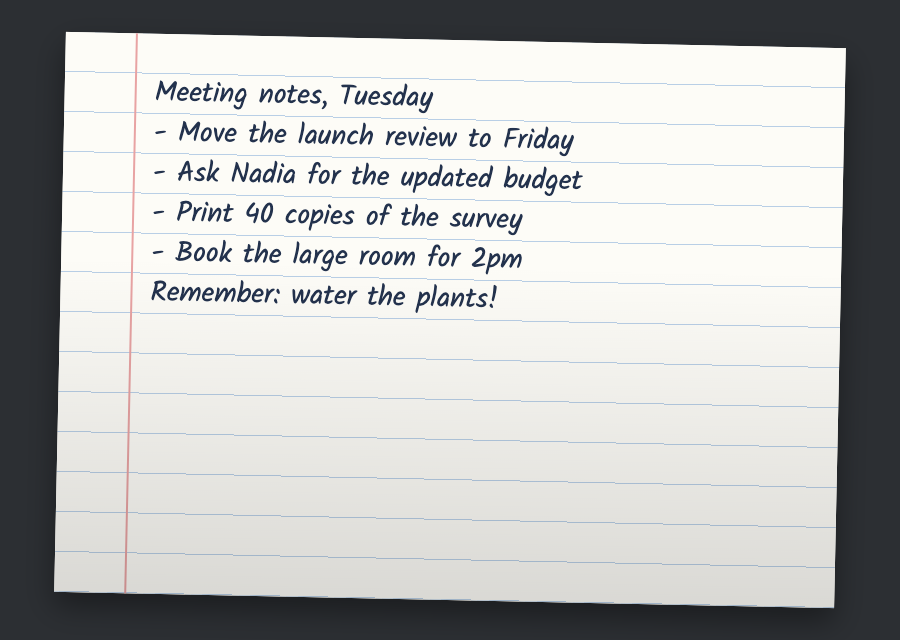
It reads JPG and JPEG, PNG, WebP, GIF, BMP, TIFF and iPhone HEIC photos, up to 25 MB each. In a PDF, digital pages are copied exactly as they are and scanned pages are read with OCR, so turning a PDF image to text is quick and accurate. Screenshots of chats, error messages and slides read especially cleanly, and dark-mode captures are handled automatically. Neat, print-style handwriting works well too; joined-up cursive is harder for any on-device engine, so doubtful words are flagged for you. Each format has its own page with tips: JPG to text, PNG to text, PDF to text, screenshot to text and handwriting to text.
Image to text in Word, Excel and Google Docs
Copying keeps headings, lists and tables, so the text pastes neatly into Google Docs, Microsoft Word or Google Sheets. To convert an image to text in Word, download a .docx with its paragraphs and headings intact. Pictures of tables become an editable grid: fix any cell, then paste it into Excel or download XLSX or CSV with numbers kept as numbers. You can also save a searchable PDF, Markdown, JSON or HTML. See image to Word, image to Excel and image to PDF.
47 languages, including Hindi, Bangla and Urdu
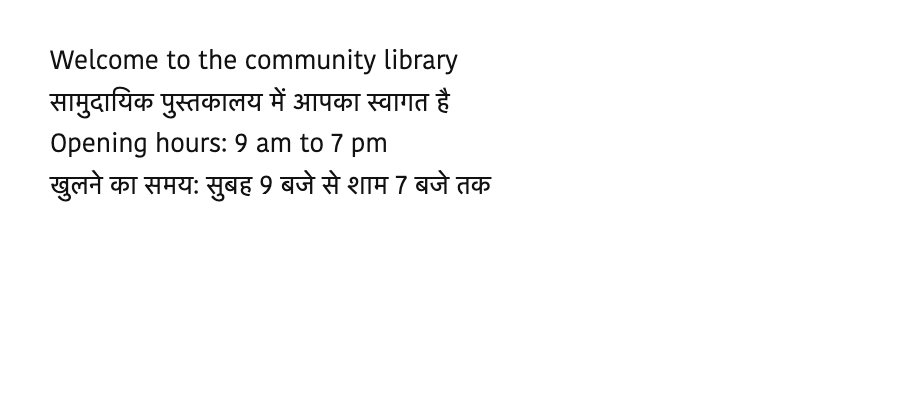
The converter reads 47 languages, from English, Spanish, French, German and Portuguese to Arabic, Chinese, Japanese, Korean and Russian. It also covers the major South Asian scripts: Hindi, Bengali (Bangla), Urdu, Nepali, Marathi, Tamil, Telugu, Kannada, Malayalam, Gujarati and Punjabi. Leave it on Auto and it spots lines in another script and reads them again with the right language, or choose several languages yourself for a mixed-language image.
Bulk image to text: many images at once
Add up to 50 images or PDF pages in one go. Each becomes a page with its own result that you can reorder, read again or remove. The whole-document view joins every page in your order, searches across all of them, and exports one combined file or a ZIP of separate files — handy for a batch of receipts, lecture slides or a scanned report.
Private OCR that runs in your browser
Many online OCR tools upload your pictures to a server. This one doesn't: the text engine runs inside your browser, so receipts, contracts, ID documents and private chats never leave your device. Only the engine and language files are downloaded the first time, and after that it keeps working offline. History stays off unless you switch it on. Read exactly what happens to your images.
Tips for more accurate results
Start with the sharpest image you have: a straight-on photo in even light, or a screenshot rather than a photo of a screen. Crop away anything you don't need, and pick the language if Auto isn't sure. For difficult images, the Adjust panel can straighten, sharpen and boost contrast before reading. There's more in the guide to getting accurate OCR results.